

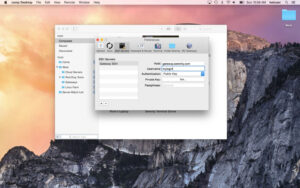
Jump Desktop for Mac v10.15.40 Remote Desktop Application Activated Version Download
Jump Desktop for Mac is a remote desktop application that allows you to securely connect to any computer in the world. Jump Desktop is compatible with RDP and VNC, secure, reliable, and easy to set up. Jump Desktop also supports our own high-performance next-generation remote desktop protocol called Fluid Remote Desktop.
#Security:
Jump encrypts connections between computers to ensure privacy and security. By default, automatic connections are always encrypted. Supports NLA, TLS/SSL encryption for RDP. SSH tunneling and SSL/TLS encryption for VNC. Fluid Remote Desktop uses DTLS for secure connections.
#Increase Productivity:
Use Mac keyboard shortcuts in Windows. Switch seamlessly between computers without changing the way you use your keyboard. Greatly improves productivity. Fully customizable: configure your own shortcuts or use built-in defaults. No other app comes close.
#Powerful Collaboration Features:
Collaborative screen sharing allows many users to connect to the same desktop. Each user has their own mouse cursor and can click and point on the same cursor. Perfect for editing documents with colleagues, tweaking designs with remote team members, creating presentations together, and teaching grandma how to clean up her email.
#Remote Support
Connect and help anyone by asking them to install the free Jump Desktop Connect app and share a simple URL with you. It’s simple, fast, and powerful.
#Integrated into macOS
Quickly search and launch computers directly from Spotlight. Full support for tabbed windows. Tightly integrated into macOS’s energy-saving technologies to give you the best battery life.
#Super Fast:
Our next-generation high-performance Fluid Remote Desktop is optimized for low-latency secure screen sharing. We also have our own in-house implementations of the VNC and RDP protocols. Multi-core, hardware-accelerated rendering for fast performance. Optimized for MacBook Pro and iMac with Retina displays.
Features:
– Multi-protocol: Supports RDP, VNC, and Fluid Remote Desktop
– Collaborative screen sharing
– Remote support
– Comprehensive international keyboard support for RDP, VNC, and ARD
– Tabs (macOS Sierra and later)
– 3 different ways to scale and pan the remote screen (very useful when controlling a multi-monitor remote system from a laptop)
– Simple and secure setup: Automatically configure your PC or Mac for remote access without worrying about your router settings. Set up any number of computers and manage them with your Google account (optional)
– Built-in SSH tunneling for RDP and VNC connections
RDP Features:
– Tested: Windows 2000, XP, Vista, Windows 7, Windows 8, Server 2003, Server 2008, Server 2008 R2, Server 2012/R2/2016, SBS Server, Windows 10
– RD Broker and load balancer support
– RD Gateway support
– Dynamic resolution updates (Win 8.1/2012 R2+)
– Desktop extension (Win 8.1/2012 R2+)
– Multi-monitor support
– Security: Supports 128-bit RDP, TLS/SSL, FIPS, and NLA authentication
– Print redirection support (including optional ultra-fast server-side driver)
– Audio streaming
– Console sessions
– Folder sharing
– International keyboard layouts
VNC Features:
– Tested with macOS 10.5+, TightVNC, RealVNC, UltraVNC, Linux (Ubuntu Remote Desktop)
– Security: Supports SSH tunneling and SSL encryption (SSL only available when using automatic setup)
– Black & white, grayscale, 8-bit, and 16-bit color modes to help manage bandwidth
– Clipboard synchronization
– Multi-monitor support
Version 10.15.40 Updates:
Major update highlights:
– Up to 480 FPS (frames per second): Games, scrolling, and fast-moving content can perfectly match high-refresh-rate screens. Set the frame rate to “Auto” to follow your screen’s refresh rate.
– Hardware encoding: Provides clearer details at the same bandwidth, reduces host CPU usage, and extends Mac battery life. Select “Codec > Hardware” to enable.
– High-performance virtual displays: Supports saving and switching presets, setting precise resolutions, scaling, and refresh rates; use the “Keep after disconnect” feature to keep these displays on the host after you leave.
– USB device support: Redirect USB devices from your desktop to Windows or Mac hosts.
– Gamepad support: Use your gamepad directly when playing games on your Mac.
– Creative work support: Under high-latency connections, the “Input Trails” feature instantly displays your stylus and mouse strokes on the screen; the “Color Passthrough” feature displays the host’s unprocessed raw colors on calibrated monitors.
– Daily work support: Supports mouse forward/back buttons, trackpad two-finger pinch zoom, and improves the reliability of CJK (Chinese, Japanese, Korean) text input.
Improvements and Fixes
– In Fluid sessions, macOS input method switching shortcuts (e.g., Control+Space) now directly switch the Mac’s local input method instead of being sent to the host. When this shortcut is disabled in macOS, the key press is sent to the host as before.
– Reduced the number of wake packets sent when connecting to a host using Wake-on-LAN.
– Fixed an issue where the auto-reconnect feature would wake a host that you had put to sleep or shut down.
– Fixed a crash when quitting Jump Desktop.
– Fixed a crash when opening Jump Desktop every time if a saved computer had no name.
– Fixed an issue on Mac hosts where mouse wheel scrolling or zooming was too large (e.g., holding Option and scrolling the wheel would zoom the video editing timeline directly to maximum).
– Fixed an issue where the session window would stay in place instead of restoring to the preset layout when reapplying a saved preset or switching to another preset with the same number of virtual displays.
– Fixed an issue where some USB devices (such as color grading control panels) could not be redirected via USB.
– Fixed an issue where RDP sessions ignored custom resolutions and used the window size instead.
– Fixed an issue where running an RDP session in full screen on all displays would cause the display order to be scrambled if the host’s displays were arranged vertically, causing the Windows taskbar to appear on the wrong screen.
– Fixed an issue in Fluid sessions where the Japanese keyboard’s “Eisu” and “Kana” keys did not work.
– Includes security updates.
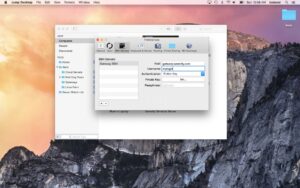
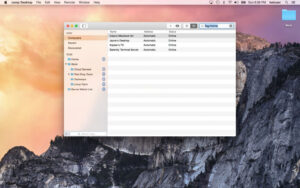
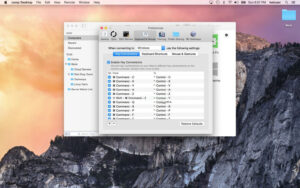
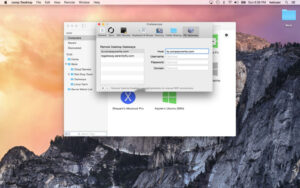
Software Screenshots:
This resource requires login to download
Log in
Jump Desktop for Mac v10.15.40 Remote Desktop Application Activated Version Download
Downloads:0 | 2026-10-20

FotoMagico 6 for Mac v6.11 Professional Slideshow Creation Tool Activated Version Download
Downloads:0 | 2026-10-20

LilyView for Mac v1.8 Lightweight Image Viewer Activated Version Download
Downloads:0 | 2026-10-20

Romance of the Three Kingdoms Classic for Mac v1.7.1 – Classic Turn-Based Ruler Strategy Game
Downloads:0 | 2026-10-20


Ratings & reviews
No rating
Let’s rate it.