

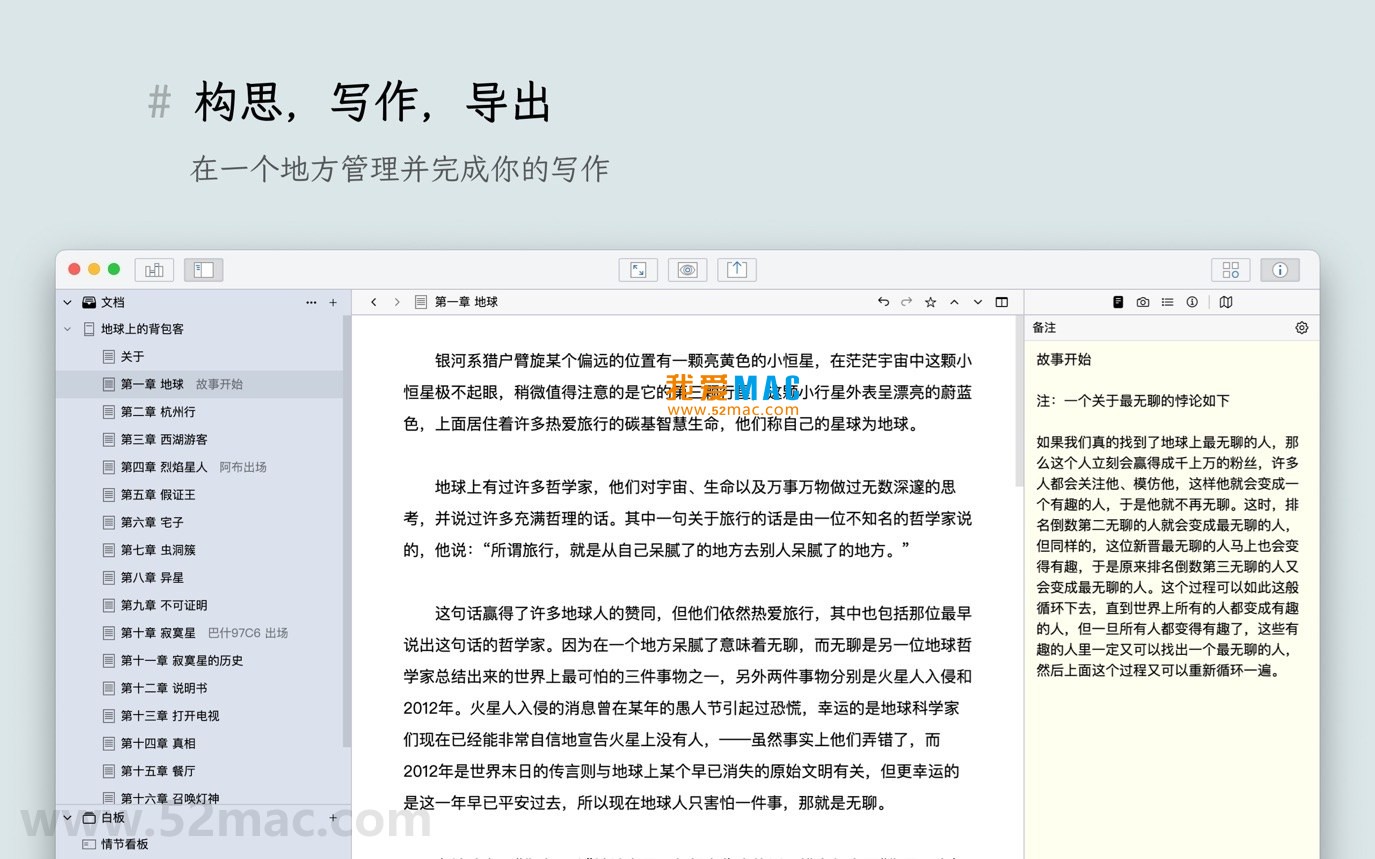


WonderPen for Mac v2.3.1 Writing Software Chinese Activated Version Download
This page provides WonderPen for Mac v2.3.1 Writing Software Chinese Activated Version Download | Love Mac, tested and available. If you encounter invalid links or inability to install after download, please leave a message to contact us.
WonderPen is a professional writing software designed specifically for the macOS platform, dedicated to providing an efficient and smooth creative environment for writers, students, content creators, and writing enthusiasts. Whether you are conceiving a short story, writing an academic paper, or creating a long-form work, its intuitive interface and rich features can help you focus on the content itself and easily complete your work.
To meet the needs of different writing scenarios, WonderPen integrates a series of core features that enhance efficiency and experience:
This update mainly optimizes the user experience and fixes known issues. Specific contents include:
The following are some interface displays of WonderPen for Mac for your intuitive understanding of its design layout and feature presentation:
The installation process of WonderPen is simplified, allowing even beginners to get started quickly. Please follow these steps:
Click the download link provided on this page to obtain the WonderPen v2.3.1 installation package. After downloading, double-click the .dmg file to mount it.
In the opened window, drag the “WonderPen” application icon to the “Applications” folder on the right. This is the standard installation method for macOS.
Go to the “Applications” folder, find the WonderPen icon, and double-click to open it. If the system prompts “Cannot verify developer”, go to “System Preferences” -> “Security & Privacy” and click “Open Anyway”.
After launching, enter the activation code as prompted. You can find the activation instructions in the download package. After activation, it is recommended to adjust the editor theme and shortcuts according to personal habits.
After completing the above steps, you can start using WonderPen for creation by creating a new project or importing existing documents.
We have compiled the following common questions and answers regarding potential issues users may encounter during use:
Fully supported. WonderPen has a complete built-in Chinese language pack, which automatically adapts to the system language after installation without additional settings.
Please check the email you received when purchasing or the “Activation Instructions.txt” file in the download package. If you still cannot find it, you can contact our customer support and provide your order number to retrieve it.
WonderPen supports importing Markdown, TXT, and some rich text formats. You can select “Import” from the “File” menu and then choose the corresponding file.
By default, they are saved in the “~/Documents/WonderPen/” directory. You can also customize the backup path in “Preferences” -> “General”.
This is usually because the corresponding font is missing from the system. It is recommended to select the “Embed Fonts” option when exporting, or use common fonts such as WonderPen’s default “Source Han Serif”.
Yes. In whiteboard mode, you can select “Export as Image” or “Export as PDF”, and all sticky notes and elements will be preserved.
WonderPen itself does not provide cloud sync services, but you can sync project folders to different devices via third-party cloud drives such as iCloud or Dropbox.
Click “View” -> “Theme” in the menu bar and select “Night Mode”. You can also use the shortcut Command + Shift + T to quickly switch.
Please check if your macOS version is lower than 10.13. If the version meets the requirements, open “Terminal” and enter sudo spctl --master-disable to allow apps from any source.
Currently, WonderPen only supports the macOS platform. There are no official development plans for other platforms.
Mastering WonderPen shortcuts can greatly improve writing efficiency. The table below lists the most commonly used shortcut combinations:
| Shortcut | Function Description | Applicable Scenario |
|---|---|---|
Command + N |
New Document | Quickly start a new chapter or note |
Command + Shift + N |
New Folder/Group | Manage complex project structures |
Command + Option + F |
Full-text Search and Replace | Quickly locate and modify content |
Command + Shift + T |
Toggle Night/Day Mode | Adapt to different lighting environments |
Command + Shift + F |
Enter/Exit Full-screen Focus Mode | Immersive writing |
Command + B |
Bold Selected Text | Quick Markdown typesetting |
Command + I |
Italicize Selected Text | Emphasize specific content |
Command + K |
Insert Hyperlink | Reference external resources |
Command + Shift + E |
Export Current Document | One-click generate PDF or Word |
Command + Option + S |
Manually Save All Documents | Ensure data safety |
Tip: You can customize the above combinations in “Preferences” -> “Shortcuts” to suit personal habits.
To help you use WonderPen more efficiently, here are several proven tips and real-world scenario cases:
When writing a long novel, numerous chapters can easily become confusing. Enable the “Node Focus” feature (right-click on a chapter in the document tree) to display only the current chapter and its sub-chapters, hiding other parts, allowing you to focus on the advancement of the current plot.
When conceiving a new book outline, you can switch to whiteboard mode. Use sticky notes to record each character’s personality traits, and use the connection tool to draw plot development diagrams. After completion, export the whiteboard as an image for easy viewing at any time.
If you need to submit manuscripts to a publisher, you can customize headers, footers, and font sizes in “Preferences” -> “Export”. This way, every time you export a PDF, your typesetting rules will be automatically applied.
A graduate student at a university used WonderPen to write a thesis, utilizing its
This resource requires login to download
Log in
WonderPen for Mac v2.1.12 – Professional Writing Software (Chinese Activated Version) Download
Downloads:1327 | 2026-10-17
WonderPen for Mac v2.2.2 – Professional Writing Software (Chinese Activated Version) Download
Downloads:3046 | 2026-10-17
WonderPen for Mac v2.3.2 Writing Software Chinese Activated Version Download
Downloads:2465 | 2026-10-17

Scrivener for Mac v3.2.3 Writing Management and Word Processing Tool Chinese Activated Version Download
Downloads:709 | 2026-10-17


Ratings & reviews
No rating
Let’s rate it.